
Polarr vs Lightroom vs Phototheca
Regardless of how powerful their shooting gear is, a photographer can hardly capture a ready-to-print shot without tweaking its post-processing. There are too many factors to consider when taking pictures — it’s impossible to control the smallest details on the spot.
Photographers use photo editing software to fine-tune the brightness and saturation of the shot, remove the background, or replace the background with a different one. There are many tools to choose from — basic and advanced ones, desktop and online. If you struggle between choosing Lightroom vs. Polarr, here’s a detailed review of both editing apps.
What is Polarr? — Features and Capabilities
Polarr photo editor is an online, mobile(iOS, Android), and desktop(Windows and Mac) editor designed to help amateur and semi-professional photographers tweak their pictures in no time. The free version of the tool offers basic photo editing support, including special effects, retouching tools, cropping or resizing a photo, and removing the background.
Interface
Polarr is quite intuitive — each editing tool is marked with a dedicated icon. The workspace is structured — you’ll find image editing tools to the left, while all retouching instruments are located in the sidebar to the right of the screen.
Polarr’s photo editor interface is similar to that of Adobe Photoshop and Lightroom — however, the platform has fully customizable features. For instance, there’s a default color histogram for every shot that exponentially facilitates tonal and color-related work.
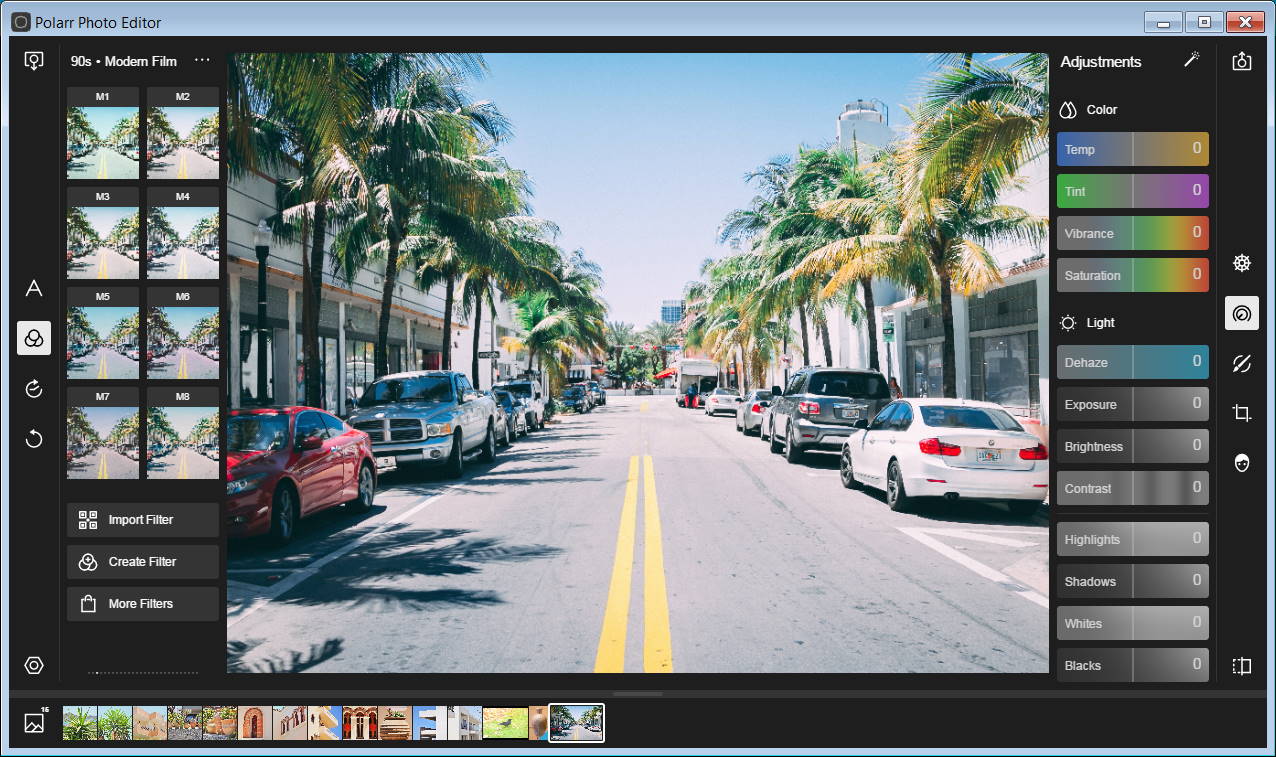
Editing features
The free version of Polarr is limited — you will not be able to use layers, masks, vectors, or text editing tools. The platform has a couple of innovative instruments to make up for the lack of advanced features — here are some of them:
- Auto Enhance function. Remove the digital noise from the picture, make colors more vivid, and emphasize the focal point of the picture;
- Color correction. The free version offers a color correction toolkit, however limited it may be. An RGB curve helps photographers tweak the contrast of their pictures. Color correction tools are designed to remove color casts from pictures and add more shadows or highlights. There’s also a real-time preview that helps track the correlation between the modifications of the curve and the changes in the frame.
- Spot removal tool. It helps portrait photographers remove pimples and acne from faces, improve skin tone, whiten teeth, etc. Due to occasional bugs, low-end device users might be a little frustrated with the feature.
- Filters. Polar has a wide range of presets to tweak the picture’s color palette. There is a wide filter range with variables like 35mm-style frames, extra brightness, and much more.
Polarr mobile editing apps
The Polarr editor app is available on mobile platforms, both iOS, and Android. You can find the Polarr iOS app here and the Polarr Android app here.
Pricing
Polarr has a Pro version with advanced features and tools. The monthly Polarr Pro subscription costs $3.99/month, and the annual cost is $29.99. After upgrading, you will get access to a bunch of advanced tools and features:
- 3D LUT filters
- Overlays
- Masks
- Layers
- Noise reduction tools
- Batch export
Polarr photo editor FAQ
Polarr app itself can not edit videos. But don’t worry. Polarr creators made another app to help you build high-quality video with cinematic fidelity filters. It is named 24FPS and is available for iOS and coming soon to Android.
To save a picture on Polarr, find the button with an up arrow in the top right corner(see the image below) and hit the button. You will see a window with all available options to save a picture: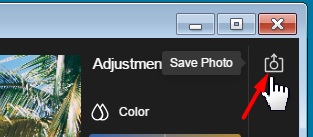
Polarr app itself can not put filters on videos. Use another app, 24FPS from Polarr creators, to apply filters on videos.
What is Adobe Lightroom? — Features and Capabilities
Created by the industry giant Adobe, Lightroom quickly gained a reputation as the most powerful retouching tool out there. The tool is cloud-based — meaning all your files are saved to a remote server and can be accessed from any device.
Interface
The Lightroom editing area is confusing for a first-time retoucher. There are no guidelines to facilitate exploring the tool, so adjusting to the interface might take months and require turning to web resources. As the tool is jam-packed with features, accessing them is sometimes uncomfortable.
Besides that, Adobe Lightroom is not holding up too well on low-end devices and requires a powerful laptop to make a difference in editing.
Editing features
Lightroom is suitable for organizing media files, converting them into different formats, and working with RAW files. Other than a robust file management foundation, the software has advanced editing features such as:
- Exposure adjustment and color correction
- A built-in collection of filters allowing photographers to create custom presets to edit pictures in a few clicks.
- Useful focus and optics slider controls
- Local editing tools
- A powerful healing brush
- Linear gradient and spot gradient masks
Pricing
Lightroom doesn’t have a free version — to use the software, photography enthusiasts must pay a $9.99/month subscription fee.
Compare editing apps: Lightroom CC vs. Polarr.
To decide which photo editing software is right for you — Polarr vs. Lightroom — take a look at the comparison chart that puts both tools face-to-face.
| Polarr | Lightroom CC | |
| Required photographer proficiency | Low | High |
| Cost | $3.99/month | $9.99/month |
| Free version | Yes | No |
| Presets | Yes | Yes |
| RAW file procession | No | Yes |
| Masks and layers | Paid version only | Yes |
| Color correction | Basic | Advanced |
| Type of Software | Online, desktop, mobile | Desktop, mobile |
Compare: Lightroom Mobile vs. Polarr
In case you mainly use photo editors to quickly tweak pictures before posting on Instagram from a smartphone, you might be wondering which of the two editors will do your shots better justice on mobile. Here’s a detailed comparison of mobile versions of Polarr photo editor vs. Lightroom.
| Polarr | Lightroom CC | |
| Usability | Low | High |
| Required proficiency | Low | Low |
| Presets and filters | Yes | Yes |
| Phone camera integration | No | Yes |
| Editing speed | Low | Low |
| Photo storage | Mobile storage space | Cloud-based server |
Compare Phototheca to Lightroom and Polarr editing apps
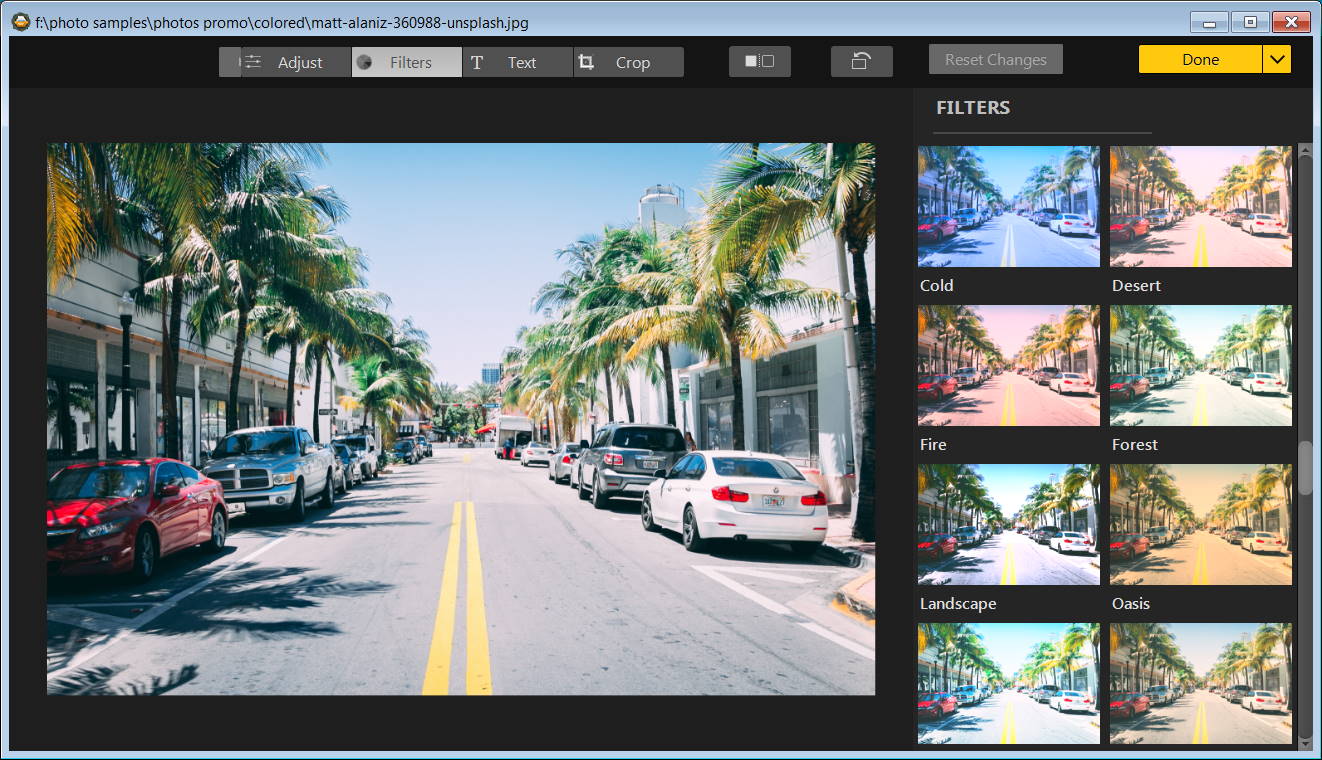
Lightroom is a feature powerhouse, but it has a steep learning curve that comes along with mastering the tool’s interface. Polarr, on the other hand, is quite straightforward, but it doesn’t have too many editing and organizing tools.
If you’re looking for a tool that has the best of both tools, consider trying Phototheca as an alternative. It is more functional and stable than Polarr, yet not as challenging to master for amateurs as Lightroom.
Phototheca doesn’t skimp on organizing or editing features. Here’s how the tool is superior when you compare Polarr and Lightroom to the software:
- Smart albums — the software automatically sorts through pictures based on the criteria you set;
- Duplicate detection and deletion;
- Dual monitor view to help photographers organize photos from multiple screens;
- Facial recognition and geo-tagging
- 56 built-in preset filters that improve the look and feel of the picture in a single click;
- Built-in Google Photos and SmugMug uploader;
- Password protection to create private folders with heightened safety.
Phototheca is more affordable than Polarr or Lightroom — while both tools offer monthly subscriptions, photographers get to enjoy the full spectrum of Phototheca features for a single downtime payment of $64.95.
To raise photo editing and organizing to the next level, download Phototheca — a program that will help your pictures stand out from other photographers!